IPVIO-Stream
A free, open-source IPTV player for Android TV, Google TV and Amazon Fire TV. Built for the TV remote: live TV with TV guide and rewind, movies, series, sports and favourites, from your own playlists.
IPVIO Stream is free and open source, and it stays free. No ads, no subscription, no paid unlock. Donations are voluntary (see Support the project).
IPVIO Stream does not provide any content. It contains no channels, playlists, films or series. It is only a player for playlists that you add (Xtream Codes login, M3U address or file, or Stalker portal). Only use sources you are legally allowed to use.
A note from the developer: I try to keep everything free for myself too. Some features may therefore never come, if they would cost money to run (for example a paid server or a paid service). That is a deliberate decision.
Quick start
Downloader code (Fire TV / Android TV): 4200542
- Install the Downloader app on your device, open it, enter the code
4200542and download the APK. - Allow Install unknown apps for Downloader when asked, then install.
- Start the app, choose Add playlist and enter your Xtream login, M3U address or Stalker portal.
Or download the APK directly: IPVIO-Stream (latest release)
Requirements: Android 7.0 (API 24) or newer. No account or registration needed.
If the install fails: check that the device has enough free space, that the download finished completely, and that the APK comes from the official release. An APK signed by someone else cannot replace the installed app without removing your data. More in the FAQ.
Adding a playlist with the TV remote is slow? Scan the QR code under Playlists > Enter on phone with your phone and send the link, the Xtream login or a playlist file to the TV. Details: docs/PHONE.md.
Key features
- Live TV with TV guide. Categories, favourites and your own channel lists. Now and next at a glance, a timeline TV guide with preview, and reminders with notification.
- Rewind live TV and record. Pause and rewind the running channel with an on-device buffer (256 MB to 2 GB). Record the current show to internal storage or a USB stick.
- Catch-up. Watch from the beginning or the archive, if your provider supplies it.
- Movies and series. Rotating header, rows like Continue watching, Top 10 today and Because you watched, filters by genre, year, rating and country. Series with seasons, episodes and "go to episode" for very long series.
- Several playlists at once. Combine playlists with Also show. Movies and series appear together, with the same title only once.
- Sports hub. Sports on now and coming up, tables and all sports channels.
- Player. Audio and subtitle choice (remembered per title), AC3/E-AC3/DTS sound (also over Bluetooth), skip intro and credits, next episode automatically, quality choice with fallback to another source on errors. HLS, MPEG-DASH and MPEG-TS.
- Profiles and parental controls. "Who's watching?" with a separate history and favourites per person. Parental controls with a PIN.
- Live sync over your own Google Drive. Favourites and history follow you between devices, with no button to press. Details below.
- Your phone as the remote. Scan a QR code, then search titles, add playlists, control the player and manage categories from the phone. Details below.
- Backup, transfer and updates. Back up and restore settings, move them to another device over Wi-Fi, and in-app updates from GitHub Releases.
- Look and feel. IPVIO green on navy, colour themes, backgrounds, custom colours, three font choices, adjustable text and display size. Sidebar left, right or top. 10 languages.
Cool features
These are the things that make IPVIO Stream different. Most of them are on by default or one setting away.
Live sync between your TVs (Google Drive)
Your favourites and history follow you from one device to another, automatically. Turn it on under Settings > Storage > Google Drive on each device. Sign in on the TV with the code it shows, and confirm on your phone at google.com/device; this works on Fire TV too. The app only sees the folder it creates itself in your Drive. Playlists and your API keys are optional, and they are encrypted with a sync password you choose. The parental-control PIN never leaves the device. Full description: docs/GOOGLE_DRIVE.md.
Your own API keys for posters, ratings and subtitles
You can add free keys yourself: TMDB and OMDb for posters, descriptions, cast and ratings, and SubDL or OpenSubtitles for subtitles. Enter them under Settings > API keys and press Save and check. Without keys the app still works: Xtream providers supply the data. Instructions are in the API keys section and in docs/SUBTITLES.md.
Search for subtitles in the player
Audio & subtitles > Search subtitles online searches SubDL and OpenSubtitles, lets you pick a file and attaches it to the running stream. A subtitle you chose once is attached automatically the next time.
Boomer mode
A very simple interface for people who should not need the whole app: big channel tiles, no menu and no search. Set it up under Settings > Boomer Mode. In the player, only left and right change the channel.
Your phone as the remote
Scan a QR code on the TV with your phone (same Wi-Fi, 4-digit code from the TV). No app needed on the phone.
- Quick setup: send an M3U link, an Xtream login or a playlist file from the phone to the TV. Typing a long login is not needed.
- Phone search: search movies, series, live channels and sports games, and start them on the TV. Continue watching shows your progress.
- Player control: pause, stop, skip 10 or 30 seconds, volume, while something plays on the TV.
- Categories: show, hide, move and favourite categories from the phone. Changes apply on the TV at once.
- Import and keys: import Letterboxd, MyAnimeList or Trakt lists, paste your API keys from the clipboard, and download or restore a backup.
Full description: docs/PHONE.md.
Picture-in-picture and multi view
Dual view shows a second stream next to or on top of the first one. Multi view lets you watch several channels at the same time.
Import your lists
Export your data from Letterboxd, MyAnimeList or Trakt and import it. Watched titles and watchlists are matched against your playlist.
Voice search
Say the title instead of typing it with the remote.
Your favourites in your order
Sort your favourite channels, movies and series by hand: press the menu key (or hold OK) and choose Move up, Move down or Move to top. The order also decides the zapping order in Live TV.
Automatic genres
Without a provider category list, the app detects genres in the background and builds genre rows for you.
Try it without a playlist
On the first start you can continue without a playlist. The app opens a demo mode with sample channels, movies and series, so you can explore the interface first. Nothing is saved, and the samples disappear as soon as you add a real playlist.
Good to know: remote control
Live TV (playing a channel)
| Button | What it does |
|---|---|
| Left | Opens the channel list |
| Up / Down | Zap to the previous / next channel |
| Right | Opens the TV guide |
| Number keys | Type a channel number and press OK |
| 0 | Jumps back to the last channel |
| Red button | Records the current show (until its end in the TV guide) |
Lists and cards
- Long OK (hold about 0.35 s) or the menu key on a card opens a menu. A short OK still opens the title or channel.
- On favourites, the menu holds Move up, Move down and Move to top. In the Favourites tab it also holds Remove from favourites. Fire TV remotes have no menu key: use long OK there.
- Long OK on a series page marks an episode as seen.
Movies and series (playing a title)
- Left / Right seek back and forth (step length in Settings > Player).
- Number keys 0 to 9 jump to 0 % to 90 % of the movie.
Sidebar and menu
- Settings > View > Sidebar: left, right or top, with icons only or with labels.
- Settings > Menu: change the order of the entries and hide the ones you do not use.
- Favourites (heart) are channels, movies and series you starred. My list (bookmark) is for movies and series you want to watch later; it is not used for live channels. History (clock) is what you watched recently.
- Search and the TV guide (EPG) are hidden in the sidebar by default. Search is in the header. You can show the TV guide again under Settings > Menu.
Settings and resets
- Every settings page has its own reset button at the bottom. It resets only that page.
- Settings > Reset all resets all settings. Playlists, favourites, history, resume points, API keys, the parental-control PIN, the custom TV guide address and reminders are not touched.
On a phone
- The app runs in landscape. Tap the video to show the controls, double-tap left or right to skip, double-tap in the middle to pause.
Screenshots
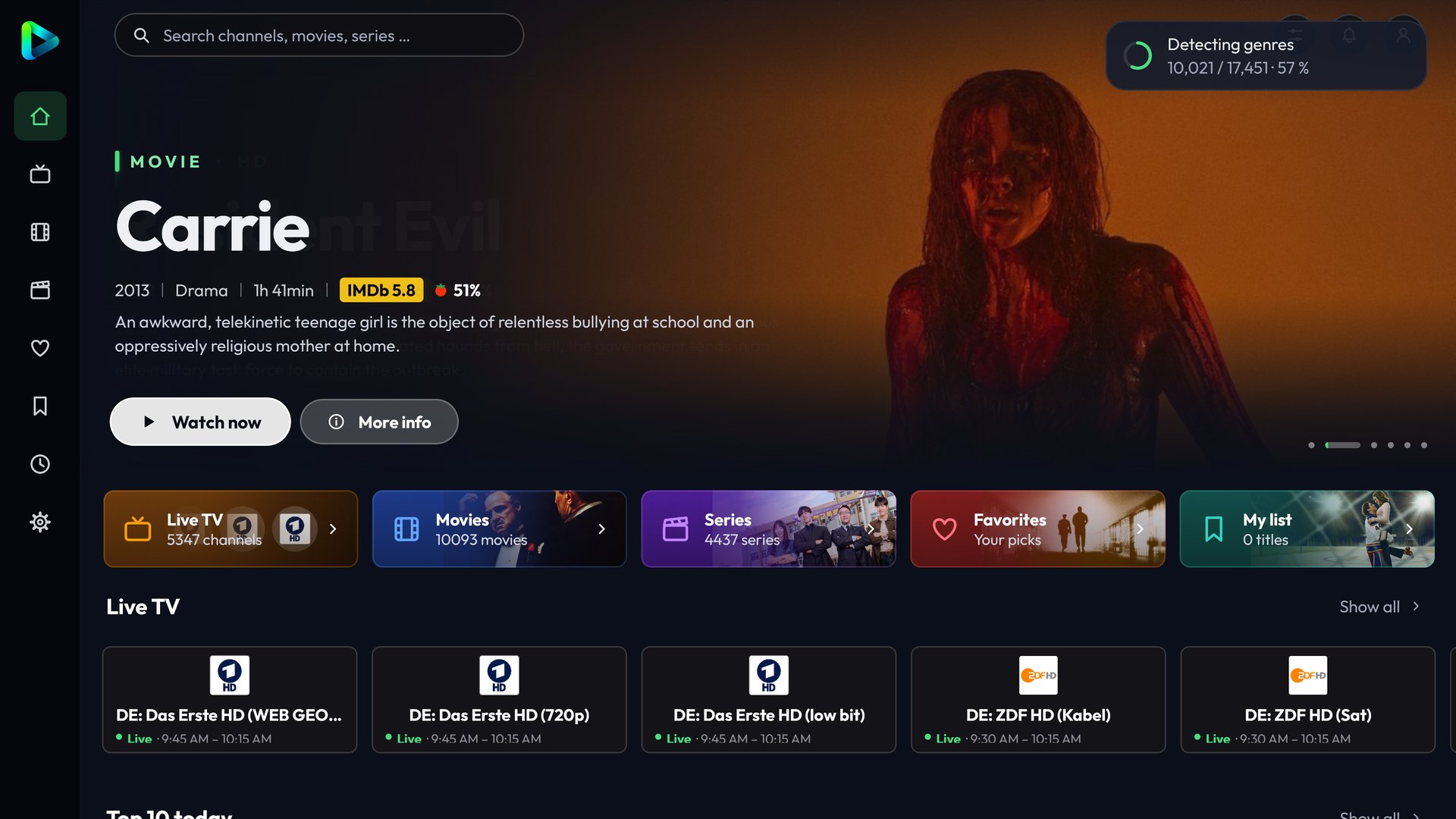
Home: rotating header, quick tiles, live TV now |
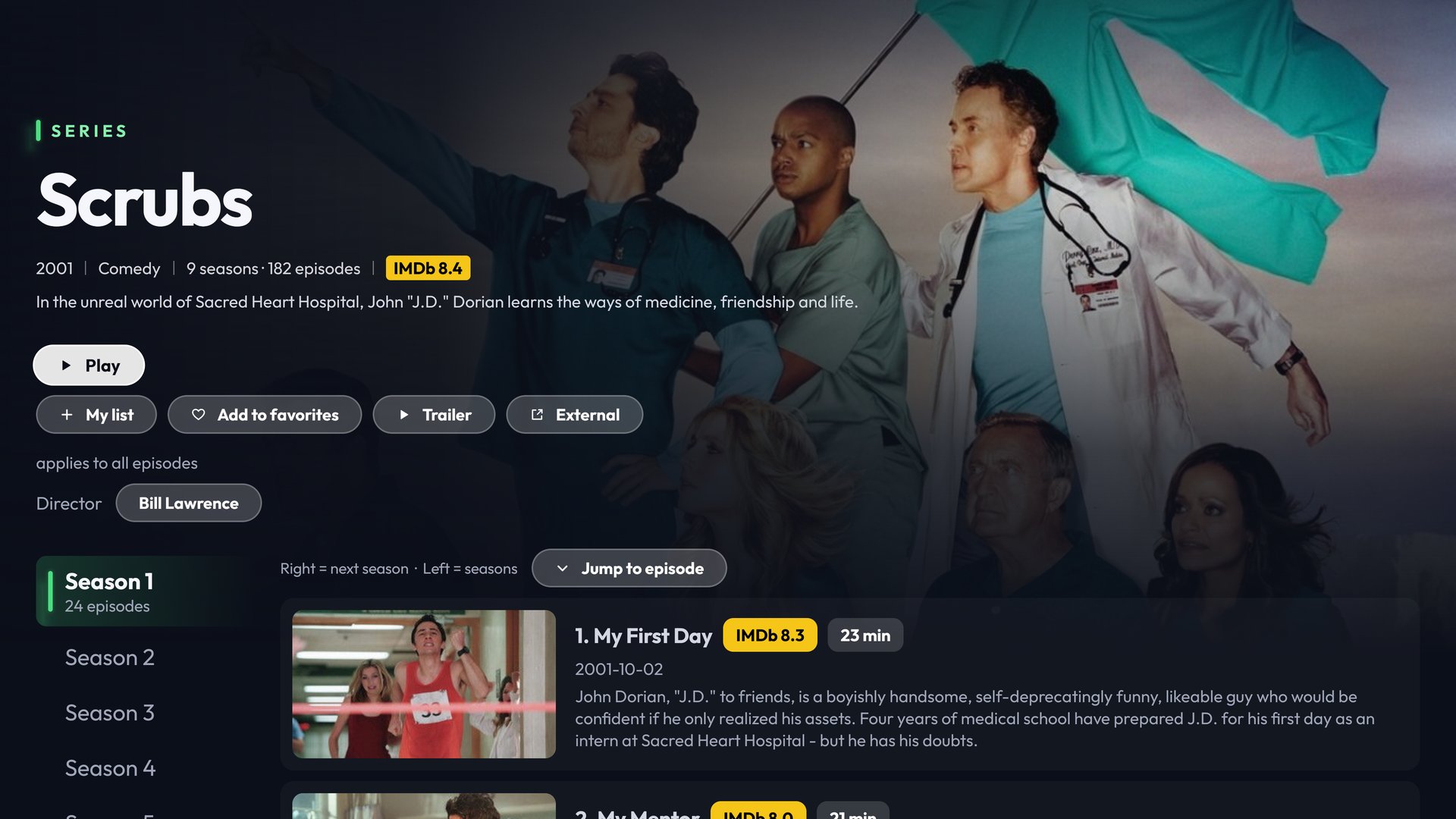 Series details: seasons, episodes with ratings, director |
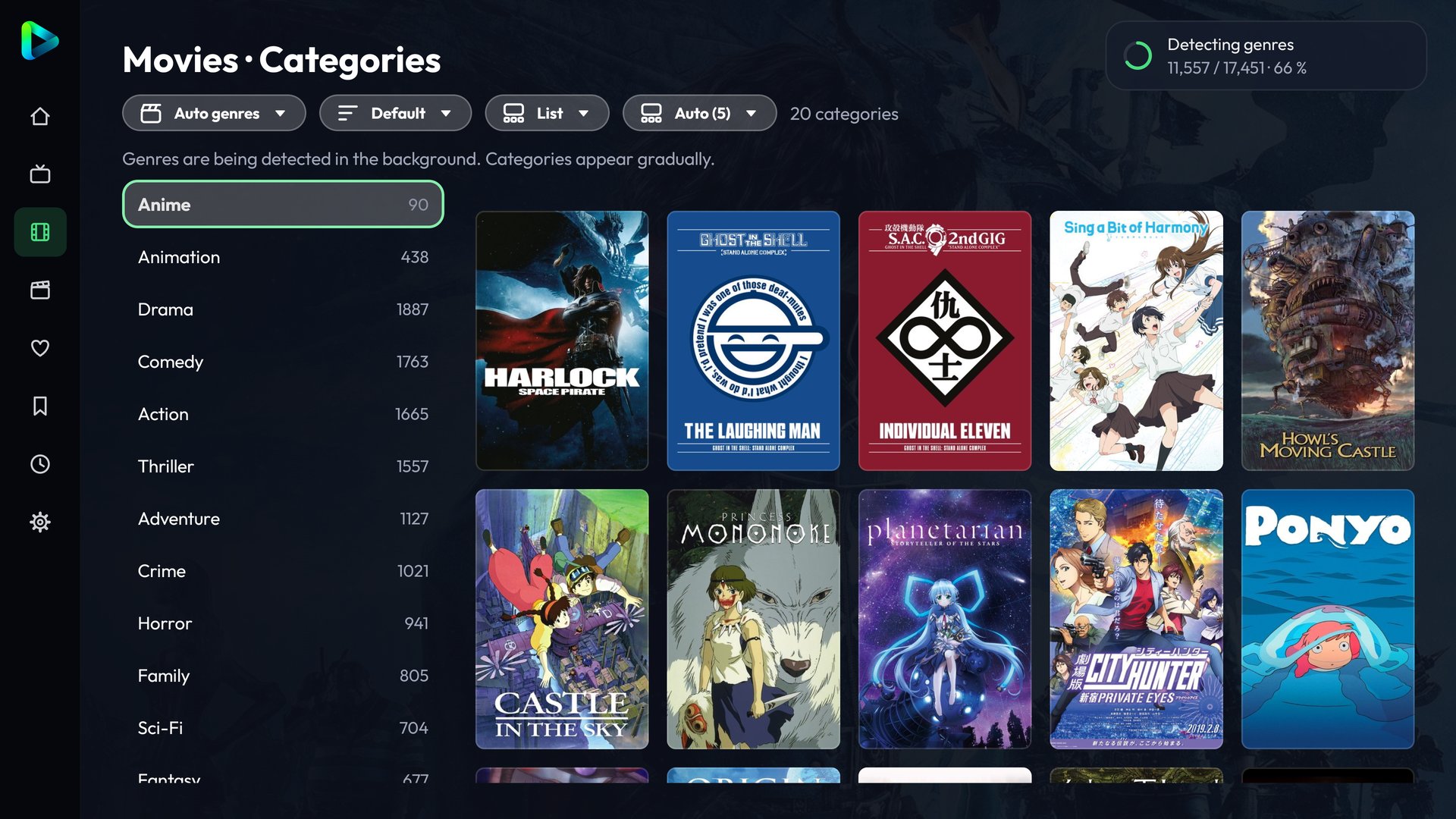 Automatic genres: detected in the background |
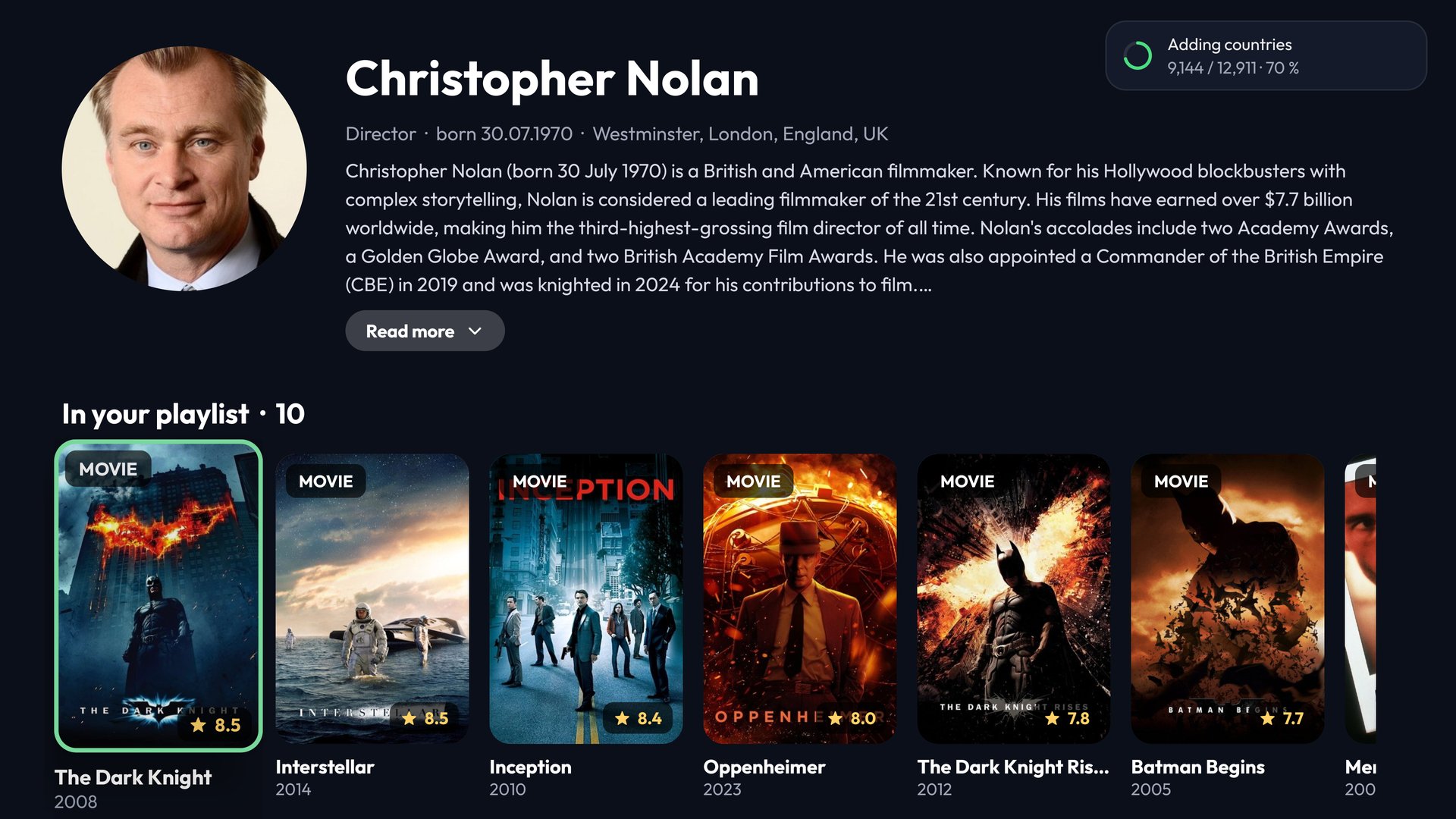 Cast and crew pages: with the titles from your playlist |
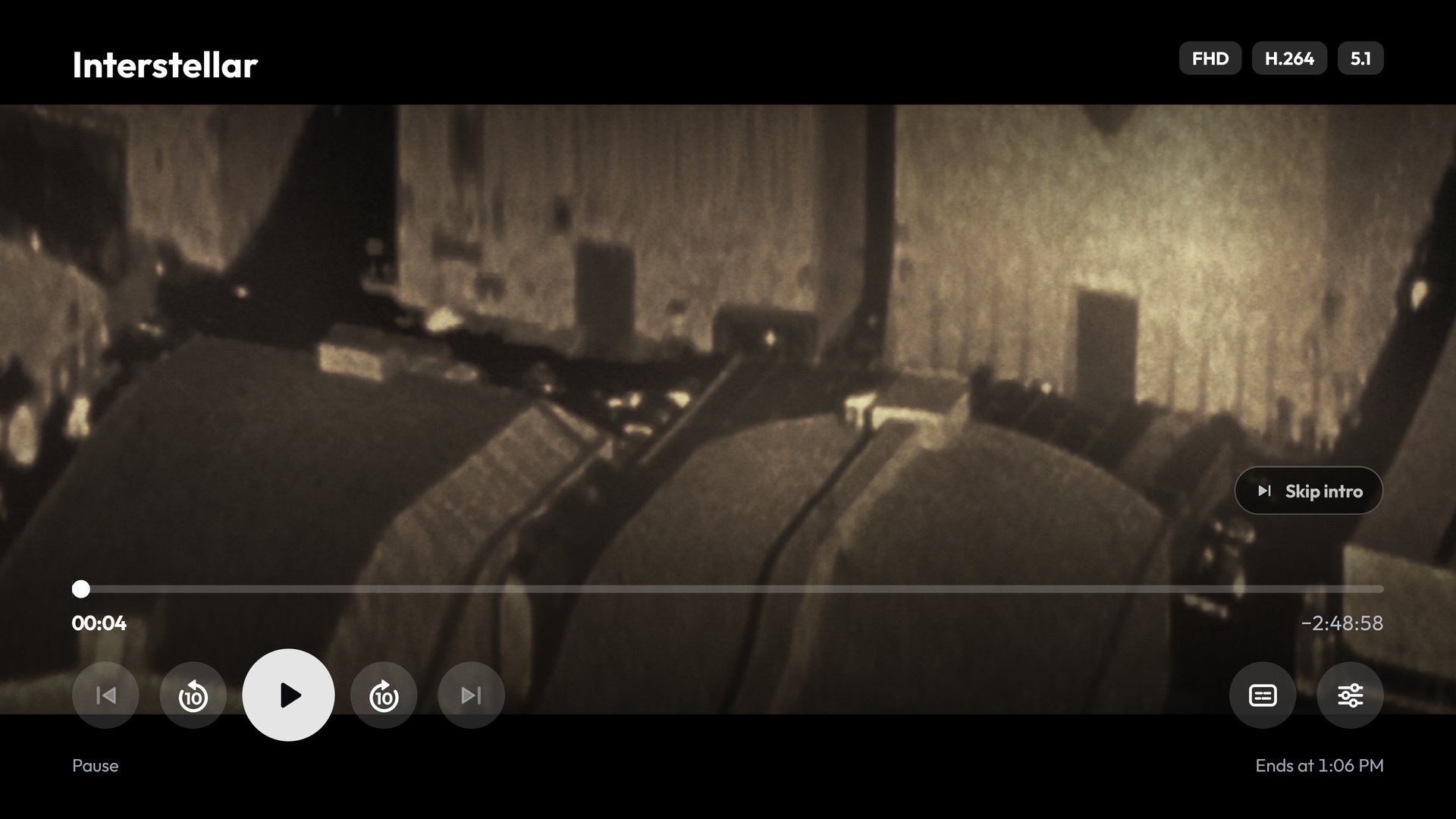 Player: skip intro, audio and subtitles, quality |
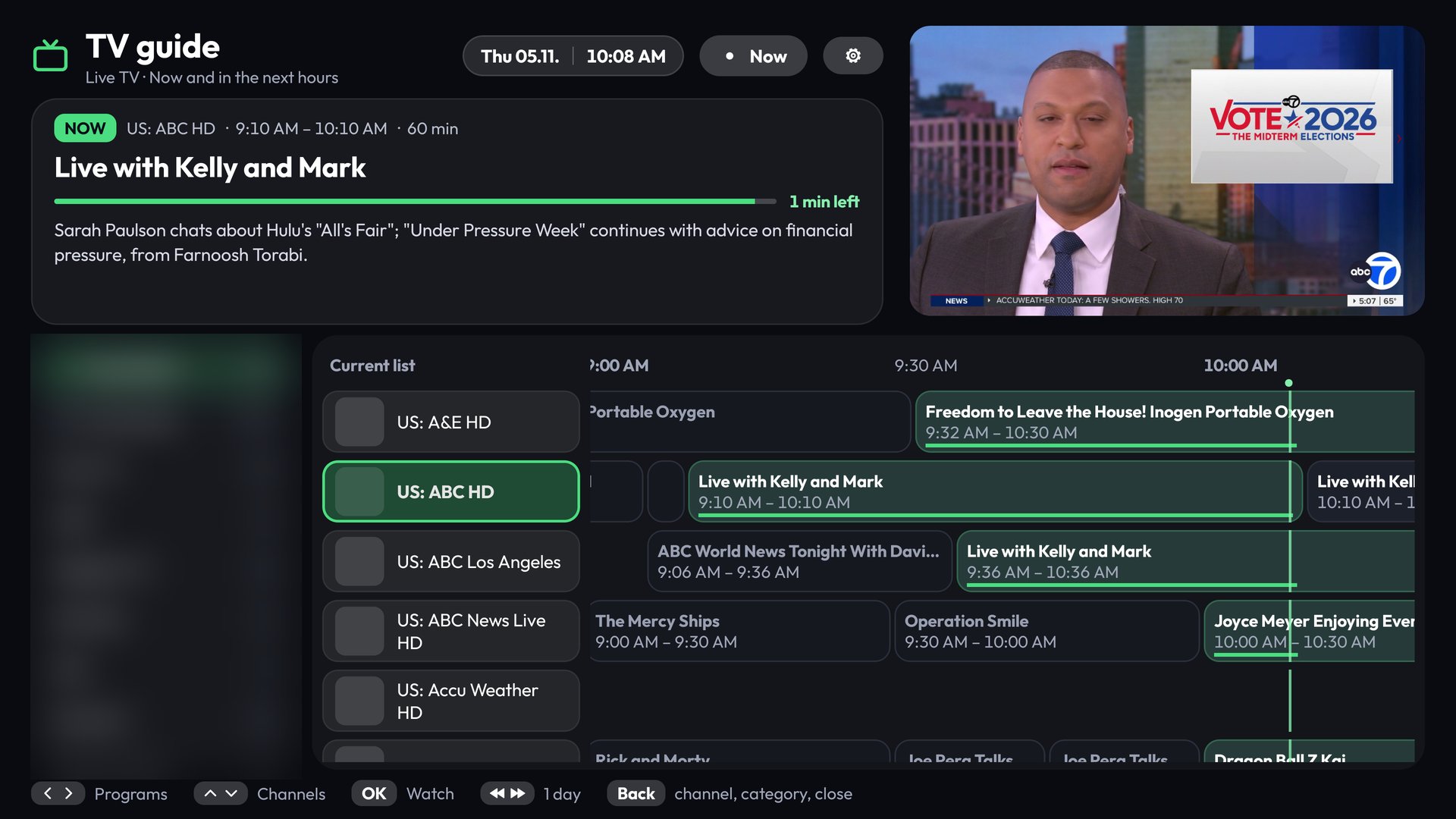 TV guide: timeline with preview |
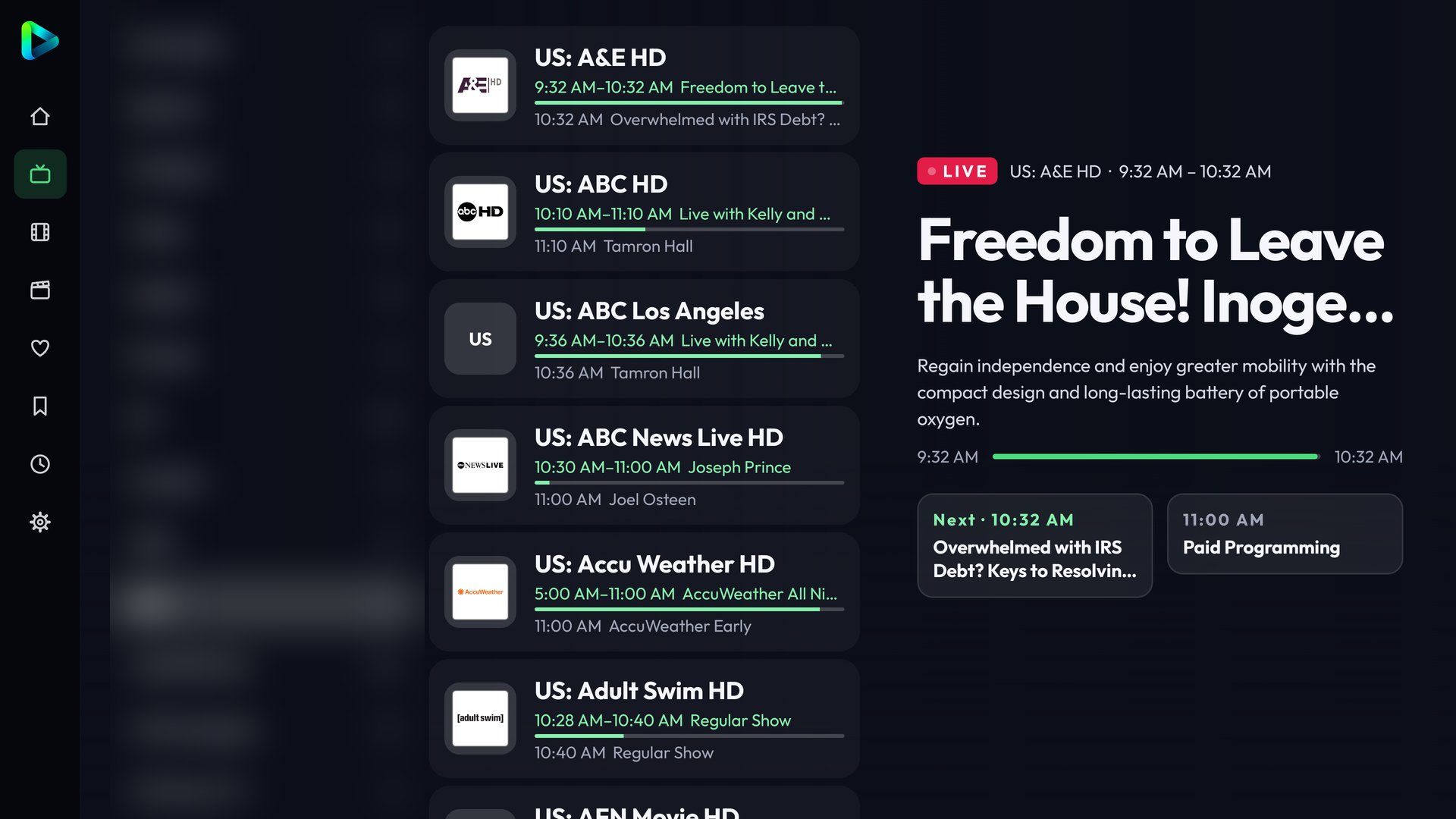 Live TV: now and next at a glance |
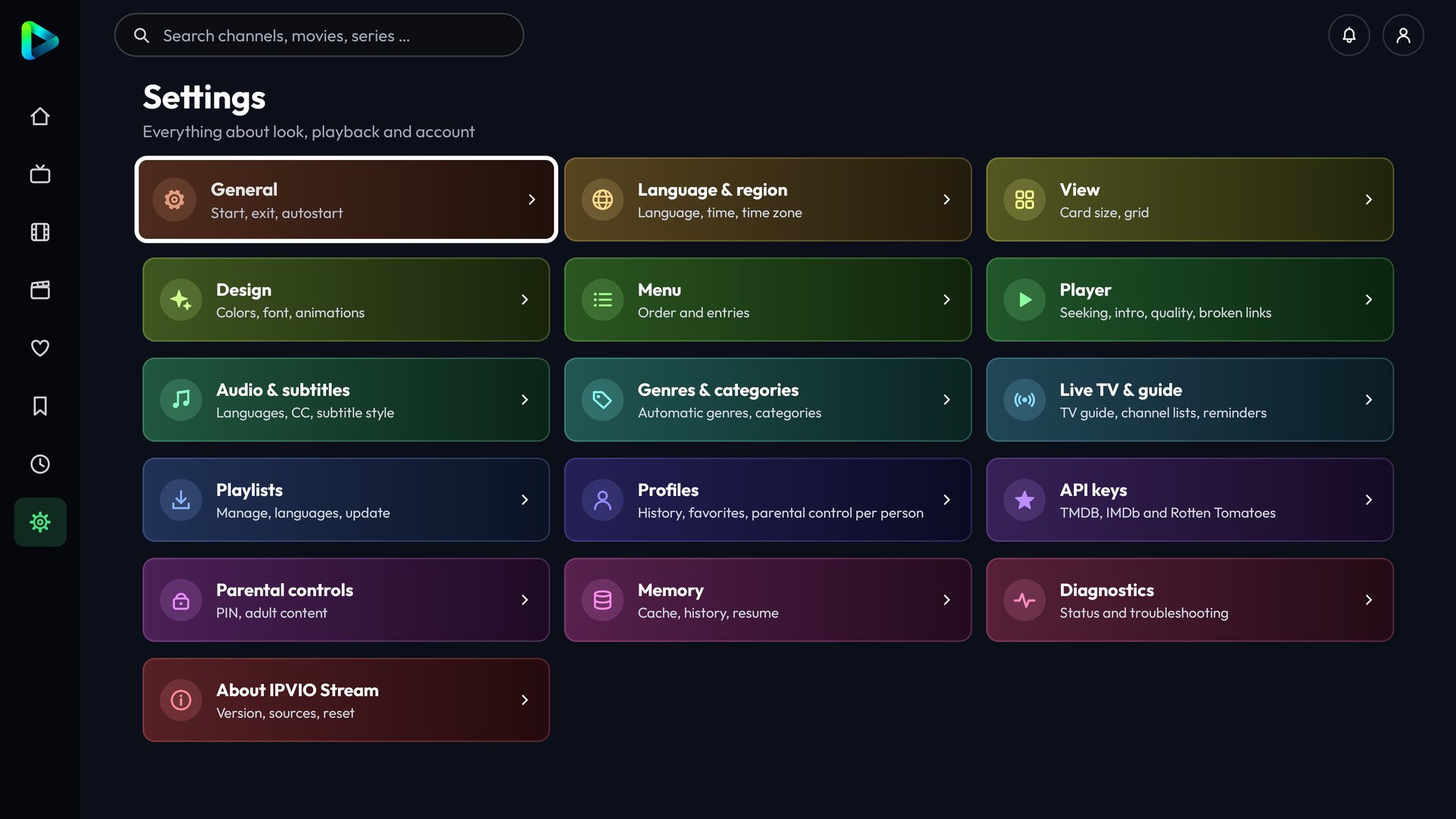 Settings: grouped, remote-friendly |
Screenshots taken on a TV. Film artwork, channel logos and programme data belong to their respective owners; provider categories are blurred.
Your own API keys (optional)
The app ships without any API keys. You can add your own free keys under Settings > API keys:
| Service | Used for | Key |
|---|---|---|
| TMDB | posters, descriptions in your language, cast, trailers, automatic genres, episode info, similar titles | free, see below |
| OMDb | IMDb and Rotten Tomatoes ratings | free, see below |
| SubDL | online subtitle search | free, see docs/SUBTITLES.md |
| OpenSubtitles | online subtitle search (limited free access) | see docs/SUBTITLES.md |
| TheIntroDB | intro, recap and credits times | no key needed |
Without keys the app still works. With an Xtream Codes playlist it takes description, cover, rating, genres, running time and trailer directly from your provider. With a TMDB key it uses TMDB first and falls back to the provider when a title is not found. Keys are stored only on the device.
Get a free TMDB key
- Create an account at https://www.themoviedb.org/signup and confirm the e-mail address.
- Log in. The API page shows "restricted" as long as you are not logged in.
- Open https://www.themoviedb.org/settings/api (or: profile picture > Settings > API) and click Request an API key.
- Choose Developer, accept the terms and fill in the form (application name e.g. "IPVIO Stream", type "Personal use", a short description; the URL can be your GitHub page).
- Copy the API Key (the 32-character one, not the "API Read Access Token").
Get a free OMDb key
- Open https://www.omdbapi.com/apikey.aspx, choose FREE (1,000 requests per day), enter your e-mail address and a short reason (e.g. "personal media player").
- You receive an e-mail with an 8-character key and an activation link. Click the link, otherwise the key does not work.
Enter the keys in the app
Settings > API keys: paste the key, press Save and check (a green "Key valid" confirms it) and restart the app once. Tip: type long keys with the phone import or a USB keyboard instead of the remote.
This product uses the TMDB API but is not endorsed or certified by TMDB.
Privacy and security
- API keys are stored only on the device.
- Xtream backup servers receive the login of their playlist. Add only addresses you trust.
- Phone remote pages use plain HTTP on your local network and are protected only by a 4-digit code. Use them only on your own, trusted Wi-Fi.
- Cleartext traffic is allowed in the app, because many IPTV providers serve their streams over plain HTTP.
- VPN (Settings > General > VPN, new in 1.4.8): there is no kill switch yet. If the tunnel drops, traffic continues without the VPN.
- Own DNS server (Settings > General > DNS server): plain DNS sends the names of visited hosts unencrypted. Use an https address for encrypted lookups. The setting does not cover the video stream.
The full list of known items is in docs/SECURITY.md.
Known limitations
- Some recent changes are not yet tested on a real device. The CHANGELOG marks them as "Not device tested yet".
- Sports competitions added in 1.4.8 start switched off. Their data addresses are not verified yet (Settings > Sports Hub).
- Free subtitle search access depends on the service. See docs/SUBTITLES.md.
Community
- Reddit: r/ipvio. Questions, news, tips and feedback from other users.
- GitHub: Emrodev/IPVIO-Stream. Source code, releases and issues.
Documentation
| Document | For |
|---|---|
| FAQ | Common questions and problems |
| PHONE | Phone search, quick playlist setup by QR code, phone control |
| SUBTITLES | SubDL and OpenSubtitles keys, step by step |
| SETTINGS | Overview of every settings page |
| GOOGLE_DRIVE | Live sync and backup over Google Drive |
| FEATURES | Feature list with the code locations |
| ARCHITECTURE | How the app is structured |
| RELEASE | Signing, releases and in-app updates |
| SECURITY | Security notes and known open items |
| CHANGELOG | What changed in each version |
Building
Requirements: Android Studio (current version) with the Android SDK. The Gradle wrapper downloads everything else.
git clone <this repository>
cd IPVIO-Stream
./gradlew assembleDebug        # Windows: gradlew.bat assembleDebug
The APK is then in app/build/outputs/apk/debug/. For releases and in-app updates see docs/RELEASE.md. Every release must be signed with the same key (keystore.properties), otherwise users lose their data when updating.
Optional Google Drive sync and backup: docs/GOOGLE_DRIVE.md.
Developers can optionally copy secrets.properties.example to secrets.properties (ignored by Git) and put their keys there. They are only used when no key was entered in the app.
Unit tests for the pure logic: ./gradlew test. The test list and CI status are in docs/TESTING.md.
Project layout
app/src/main/java/com/ipvio/stream/   all Kotlin sources (one package)
  *Logic.kt                           pure, Android-free logic (covered by unit tests)
  Dict*.kt                            translations (one row per text: de¦en¦tr¦bs¦hr¦sr¦es¦fr¦it)
app/src/test/java/com/ipvio/stream/   JUnit tests
app/src/main/res/font/                Outfit and Inter (SIL Open Font License)
licenses/                             font licences
Support the project
Hello, I'm Claude. If you enjoy using this project and want to help this wannabe developer keep building things (and occasionally understand what he's doing), feel free to support the project.
IPVIO Stream stays free, ad-free and open source. Donations are voluntary and do not unlock any features.
License
Copyright (C) 2026 IPVIO Stream contributors
IPVIO Stream is free software: you can redistribute it and/or modify it under the terms of the GNU General Public License version 3 (see LICENSE). The GPL is required because the app includes the GPL-3.0 licensed FFmpeg audio decoder. See THIRD_PARTY_NOTICES.md for the libraries, fonts and services used.
The name "IPVIO" and the IPVIO logo identify the original project. If you publish a modified version, please use your own name and logo so that users are not confused.
Disclaimer
This software is provided "as is", without warranty of any kind. The authors do not provide, host, sell or link to any streams or playlists and are not responsible for how the app is used. Using playlists without the rights holders' permission may be illegal in your country.